
Connector Configuration Generator
Projects often integrate with various third-party systems, such as databases, messaging services, and web protocols. These integrations are typically managed through connectors that facilitate communication between the TIBCO® application and external systems.
The Connector Configuration Generator consolidates all the third-party connectivity details in the TIBCO® project, and produces Confluent® connector modules based on those available details.
Post-Processing Steps
-
Click the Connector configuration generator icon (labeled Connector / Connector Config) to view results when processing completes.

-
Review Columns
Config ID: Unique accelerator-level identifier.Total Connections: The total number of connections available.Duplicate Connections: The number of duplicate connections within the total connections.Failed Connections: The total number of connections that were failed due to missing required parameters.Processed Connections: The number of connections that were successfully processed.Missing Connections: The number of connections that are failed as the relevant files are missing in the project.Missing Files: The paths of the files that are missing.
-
Actions
-
Download: Request download of the output files as a ZIP archive.
-
View: Inspect the connection configuration YAML and Confluent connector JSONs generated by this accelerator, along with the Kafka® Configuration Generator outputs — including the CFK Kafka Topics resource YAML and shell script. These Kafka-related files are also provided here for easy access, as they are closely tied to this workflow.
-
Code Library: Download a code library ZIP containing libraries for Java, Python, and C#. This library allows you to generate connection objects based on the provided configuration YAML file, integrating seamlessly with your desired codebase.
-
Working with Output Files
The Connector Configuration Generator produces two types of output files:
- Connection Configurations YAML: Contains details of third-party connections from the input TIBCO project. This is used to generate connection objects that can be leveraged in further applications.
- Confluent Connector JSON: Contains an array of Connector configurations for Confluent. These will be downloaded as individual JSON files, allowing users to selectively deploy connectors in a Confluent environment.
Generating Connection Objects from YAML
This YAML file is targeted for generating connection objects in your application code (i.e., Java, Python, C#), unlike Confluent connector JSON files which are meant for deployment in a Confluent environment.
The YAML file contains connection details extracted from the uploaded project. These details are used to generate connection objects through language-specific connector libraries.
We provide connector libraries in Java, Python, and C#, allowing you to choose the one that best fits your project needs.
You can download the Code Library archive from the icon in the Connector Configuration Generator section:

After integrating the appropriate library into your project, you can make a request using the proper parameters to receive a ready-to-use connection object.
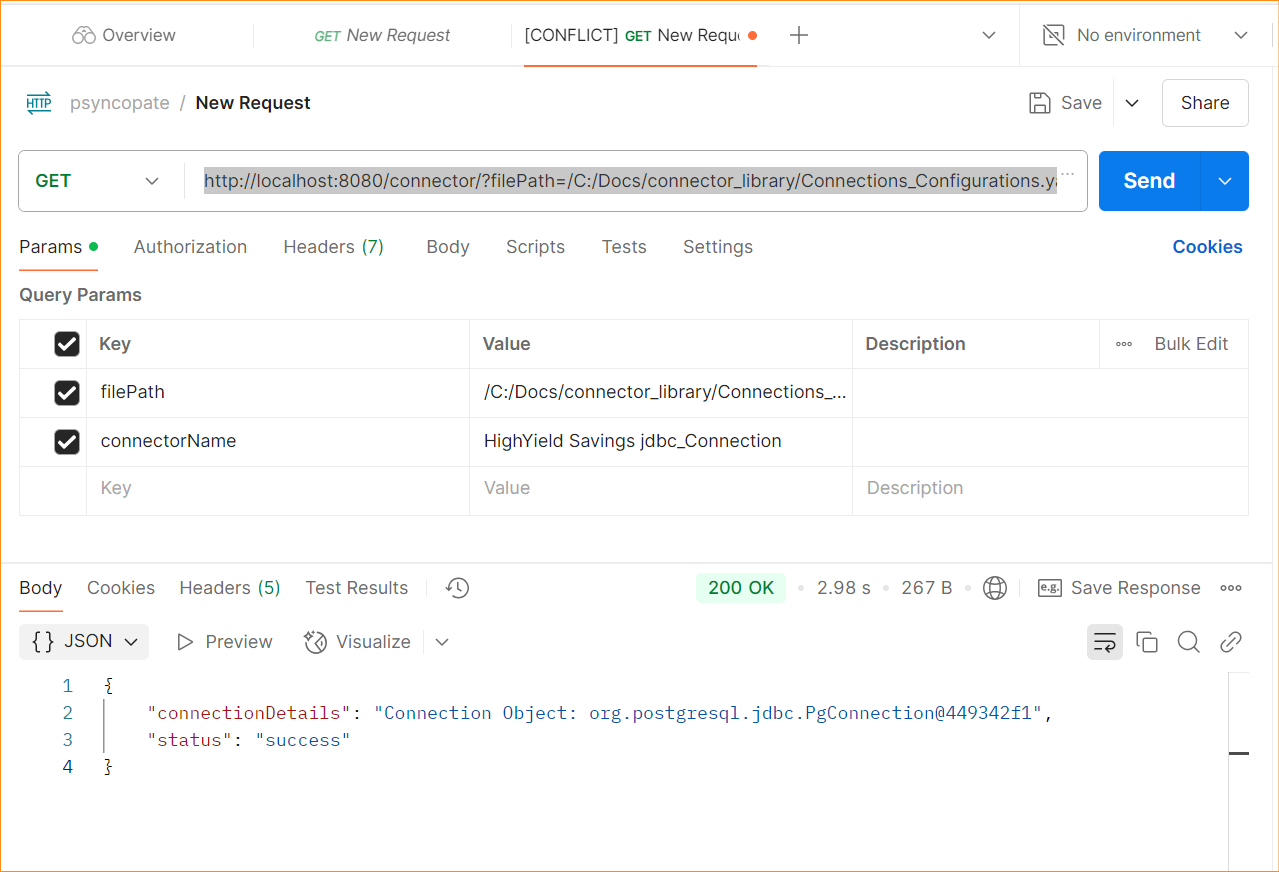
Here’s a sample structure of the request URL:
http://<host>:<port>/connector/?filePath=/path/to/YAML/&connectorName=UseConnectorNameReplace the placeholders with appropriate values:
<host>and<port>: Specify the host and port where the connector library service is running (for example,localhost:8080if it’s running locally)./path/to/YAML/: Replace with the full path to your extracted YAML configuration file.UseConnectorName: Replace with the name of the connector for which you want to retrieve the connection object. This should match the connector name as defined in your input project.
Once the request is sent with these parameters, the response will include the connection object. For example, this is how the connection object might look in the response:
{ "connectionDetails": "Connection Object: org.postgresql.jdbc.PgConnection@449342f1", "status": "success"}You can test this request using tools like Postman. Here’s a sample request made to a locally hosted server:
Testing Connection Configurations
A dedicated test suite is included in the same archive for each programming language (i.e. Java, Python, C#). This test suite helps validate the creation of connection objects using the YAML file before integrating code library into your application.
Each test set verifies the accuracy of the generated connection configurations, ensuring they align with the expected structure and behavior.
- Open the downloaded Code Library Test Suite in an IDE (e.g., VS Code).
- After downloading the code library, install the required dependencies using your preferred language’s standard method.
- For Java, run
mvn installin the project directory to download dependencies. - For Python, run
pip install -r requirements.txtin the project directory. - For C#, use the NuGet package manager to install the required packages.
- For Java, run
- Place the ZIP file(s) downloaded from the Modernization Suite into the
project_filesdirectory. These ZIPs should include the YAML file containing connection configurations. - Run the library. After successful execution, an output file with the same name as the uploaded project file, but with a
.CSVextension, will be generated in thetestsuite_resultsdirectory. - The output results file will contain the following details:
- Name of the connector
- Type of connector (e.g., Message Service, SFTP, HTTP, etc.)
- SubType of connector (e.g., EMS, Kafka, IBM MQ, etc.)
- Status of the connection (e.g., Success, Fail)
- Remarks on the connection status
Once processing is complete, the uploaded project ZIP files will be moved to the archive_files directory.
A detailed README file is included in the code directory, providing detailed instructions on setting up and running the library and test suite for each programming language.
Confluent Connector JSON files
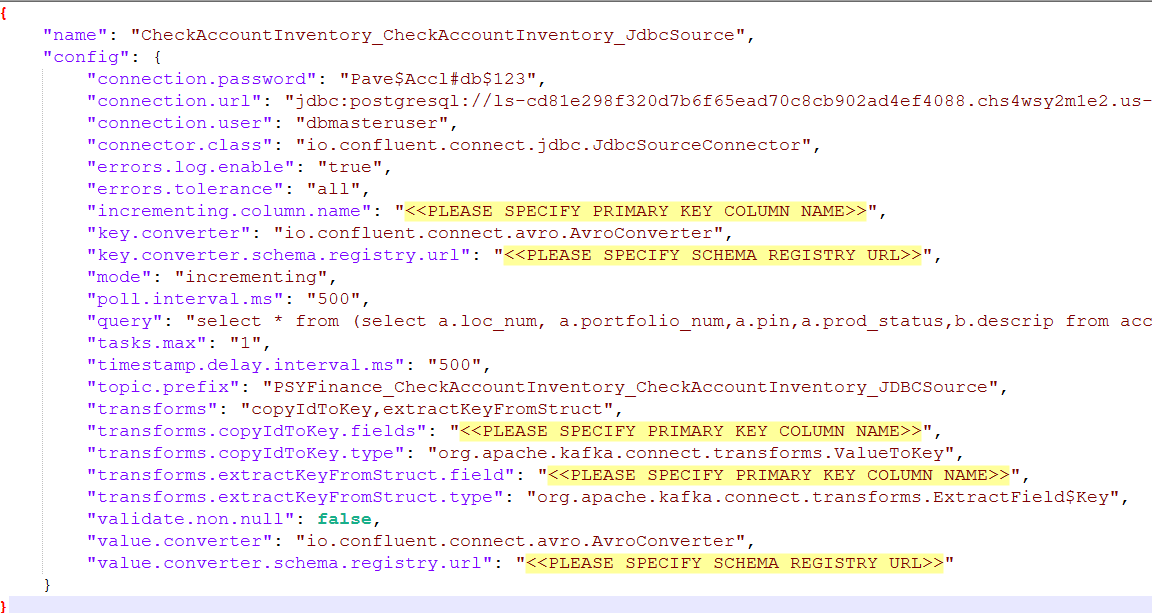
These JSON files are targeted for deployment in a Confluent environment, either Confluent Cloud or Confluent for Kubernetes (CFK).
These files define Confluent connectors used to integrate Kafka with various external systems. Users must update the required parameters in the JSON files wherever placeholders such as <<PLEASE SPECIFY ...>> appear. Attempting to deploy without updating these values will result in failure.
Supported Connector Types
We currently support the following connector types:
- JDBC: Connects to relational databases.
- HTTP/HTTPS: Handles REST API interactions.
- FTP/SFTP: Transfers files over secure connections.
- IBM MQ: Integrates with IBM MQ message queues.
Confluent connectors are categorized into:
- Source Connectors: Pull data from external systems into Kafka.
- Sink Connectors: Push data from Kafka to external systems.
Deploying Confluent Connectors
You can use either Confluent cloud or CFK (Confluent For Kubernetes) environment to configure connectors.
Open Confluent Control Center to configure connectors in your chosen Confluent environment.
Configuring Specific Connectors
- Open the Cluster and navigate to the Connect tab to configure connectors.
- Click on Add Connector to create a new connector.
- Click on Upload connector config file to upload the JSON file.
- The connector will be added to the list of connectors.
When configuring connectors, topic selection depends on the adjacent activity for any current activity. If the next activity is JMS (com.tibco.plugin.jms), a source connector uses the same topic; otherwise, a new topic is created. Likewise, if the previous activity is JMS, a sink connector uses the same topic; otherwise, a new topic is generated.
The format for newly generated topic names is:
project_name + file_name + activity_name + connector_name + (Source/Sink)
JDBC Source and Sink Connectors
- JDBC Source Connector: Extracts data from databases into Kafka topics.
- JDBC Sink Connector: Writes data from Kafka topics into relational databases.
JDBC sink connector supports insert, update and delete operations.
To perform delete operation, follow these steps:
- Ensure Kafka records have a null value (tombstone).
- The key must be the primary key of the row to be deleted.
- Manually update the table schema if needed.
Note: Confluent does not allow table deletion when data still exists. Therefore, the above conditions must be met to proceed with deletion.
HTTP Source and Sink Connectors
- HTTP Source Connector: Captures HTTP data into Kafka.
- HTTP Sink Connector: Sends Kafka data to HTTP endpoints.
HTTP Connector with SSL Certificate
To add an SSL certificate (e.g. custom-myTrustStore.jks), go to the file location and execute the following command:
kubectl cp custom-myTrustStore.jks confluent/connect-0:/home/appuserTo verify whether file is copied, run:
kubectl exec connect-0 -it -- /bin/shOr update the Dockerfile:
RUN mkdir -p /home/appuserCOPY myTrustStore.jks /home/appuser/IBM MQ Source and Sink Connectors
- IBM MQ Source Connector: Fetches messages from IBM MQ.
- IBM MQ Sink Connector: Publishes messages to IBM MQ.
Place IBM MQ JAR files in the Docker directory before deployment (refer Docker image section for files).
FTP and SFTP Source and Sink Connectors
- Source Connector: Imports data from an SFTP directory to Kafka.
- Sink Connector: Exports Kafka data to an SFTP directory.
Note: Confluent doesn’t support FTP. Please use SFTP for secure file transfer.
To enable FTP to work as SFTP, open port 22 and configure SSH daemon settings accordingly.
SFTP source connector supports CSV, JSON, and binary. Please change the connector class according to the requirement as below:
- CSV: io.confluent.connect.sftp.SftpCsvSourceConnector
- JSON: io.confluent.connect.sftp.SftpJsonSourceConnector
- Binary: io.confluent.connect.sftp.SftpBinaryFileSourceConnector
TIBCO® is a registered trademark of Cloud Software Group, Inc. and/or its subsidiaries in the United States and/or other countries. Confluent® is a registered trademark of Confluent, Inc. Kafka® is a registered trademark of the Apache Software Foundation. All other product names, logos, and brands are the property of their respective owners.