
Navigating the Interface
The Suite interface is designed to be user-friendly and intuitive, allowing users to easily navigate through various features and functionalities. Below is a detailed guide on how to use the interface effectively.
Key Components
-
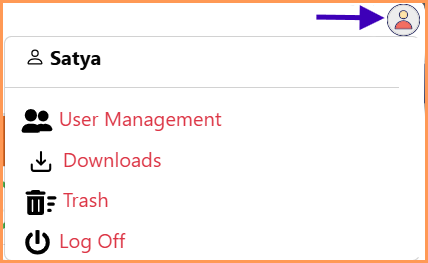
Profile Section: Hovering over the profile icon displays the following options:
-
User Name: Displays the name of the user.
-
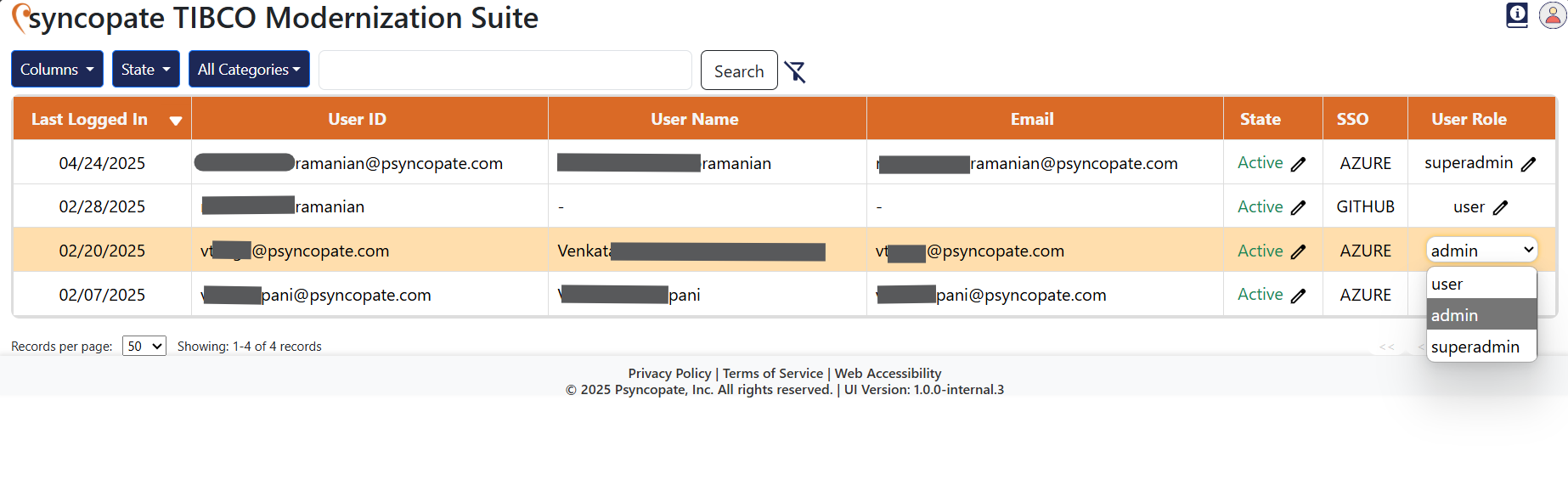
User Management: Allows super admins to manage users and their roles within the organization. This feature is visible only to super admins.
-
Downloads: This is where you can view and track the status of your download requests, whether they are in progress, successful, or failed. You can also re-download files from this section if needed.
-
Trash: Enables viewing and restoring of deleted records.
-
Log Off: Signs you out of the application.
-
-
Documentation: Click the
iicon to open the documentation. It will redirect the user to docs.transformation.psyncopate.io (this site).
UI Elements
-
Columns: Customize displayed columns by selecting or deselecting the desired columns.
-
Status: Filter records by status using the dropdown menu. The available statuses are:
- Select All: All records.
- New: Newly uploaded records.
- Success: Successfully processed records.
- In Progress: Records currently being processed.
- Failed: Failed records.
-
Search: Find records by category and keywords. Use Clear Filter to reset.
- Enter keywords in the text bar and press Enter or click Search to filter and view relevant details. Optionally, select a category for more refined results.
- Note that the Clear Filter resets all filters in the columns, status, and category options.
-
Title: Click Psyncopate TIBCO Modernization Suite to return to the homepage.

-
Download: Click the download icon to request download of the output file(s) as a ZIP archive at the project level or accelerator level, available once the input project has been processed. The download will be prepared in the background, and you can track its status in the Downloads tab under your Profile section.

-
Delete: Click the bin icon to delete the selected record from the home interface. It will be moved to the trash.

-
Restore: Click the restore icon to restore the deleted record from the trash.
-
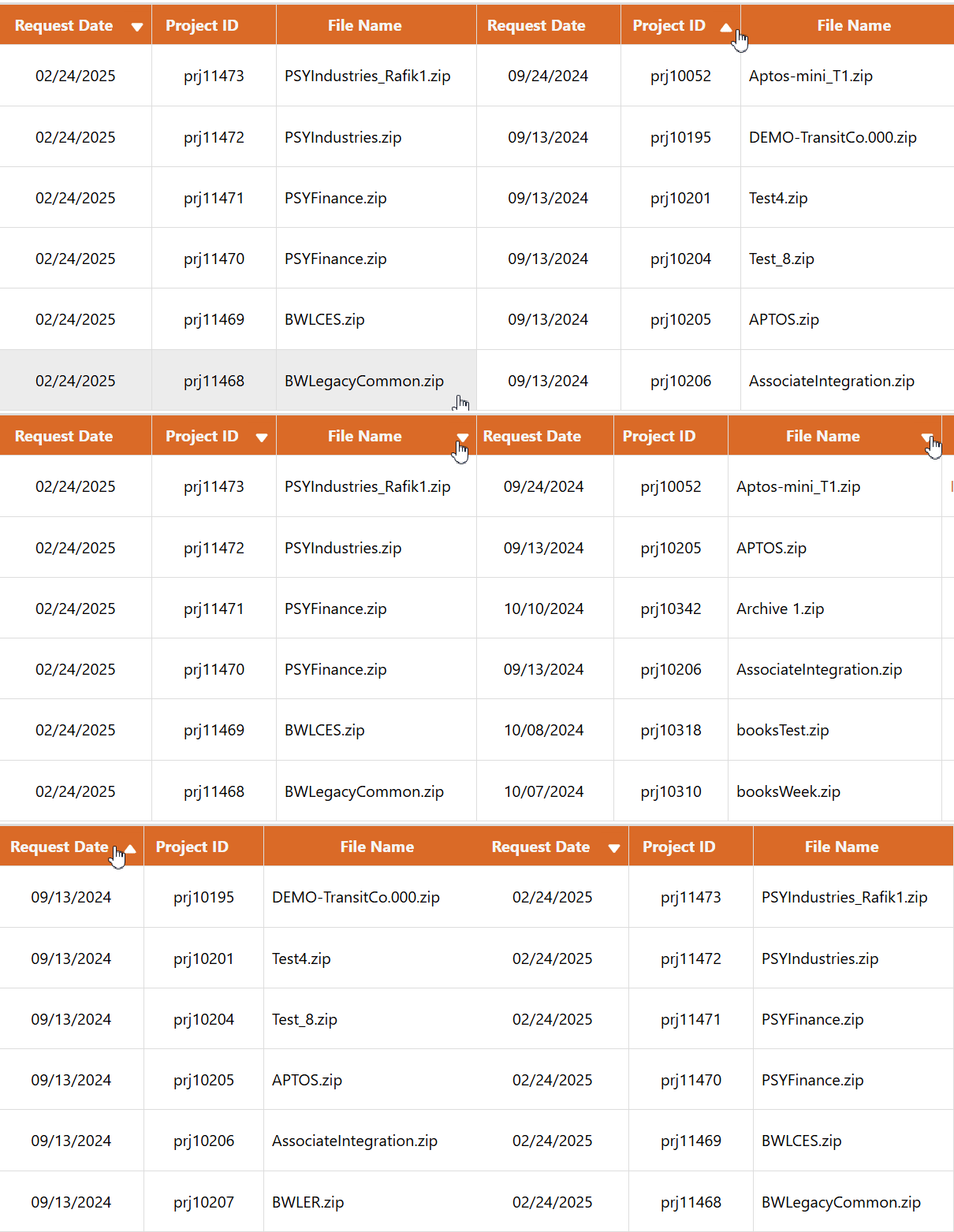
Sort: Click column headers to sort the data in both ascending and descending order wherever applicable.
-
Select All : Click the checkbox in the header to select all records on the current page. This allows you to perform actions like download or delete on all selected records at once.
-
Records Per Page Selector: Allows you to choose the number of records displayed per page (20, 50, or 100). The default is set to 20 records per page.
-
Pagination: Allows you to navigate through multiple pages of records using the controls (at the bottom of the records). It includes:
- First page
<<and Last page>>buttons. - Previous
<and Next>buttons. - Numbered page links with the current page highlighted.
- First page
Accelerator Actions
-
View: Click the view icon to open the output details of the selected accelerator. This will display the results of the processing for that specific accelerator.

-
Download: Click the download icon to request download of the output file(s) as a ZIP archive at the accelerator level, available once the relevant input files have been processed. The download will be prepared in the background, and you can track its status in the Downloads tab under your Profile section.
Standard Fields Across Accelerators
Each accelerator includes the following standard column fields:
| Column | Description |
|---|---|
| User ID | Account initiated the task (only visible to admins/super admins) |
| Request Date | Request initiated time |
| Project ID | Unique project identifier (exist in schema and XSLT accelerators) |
| File Name | Input file name |
| Status | Current status of the project [ New / Success / Failed / In Progress ] |
| Last Modified Date | Execution completion time |
| Remarks | Success details or error messages |
TIBCO® is a registered trademark of Cloud Software Group, Inc. and/or its subsidiaries in the United States and/or other countries. All other product names, logos, and brands are the property of their respective owners.